Changing Icons
Using the GUI
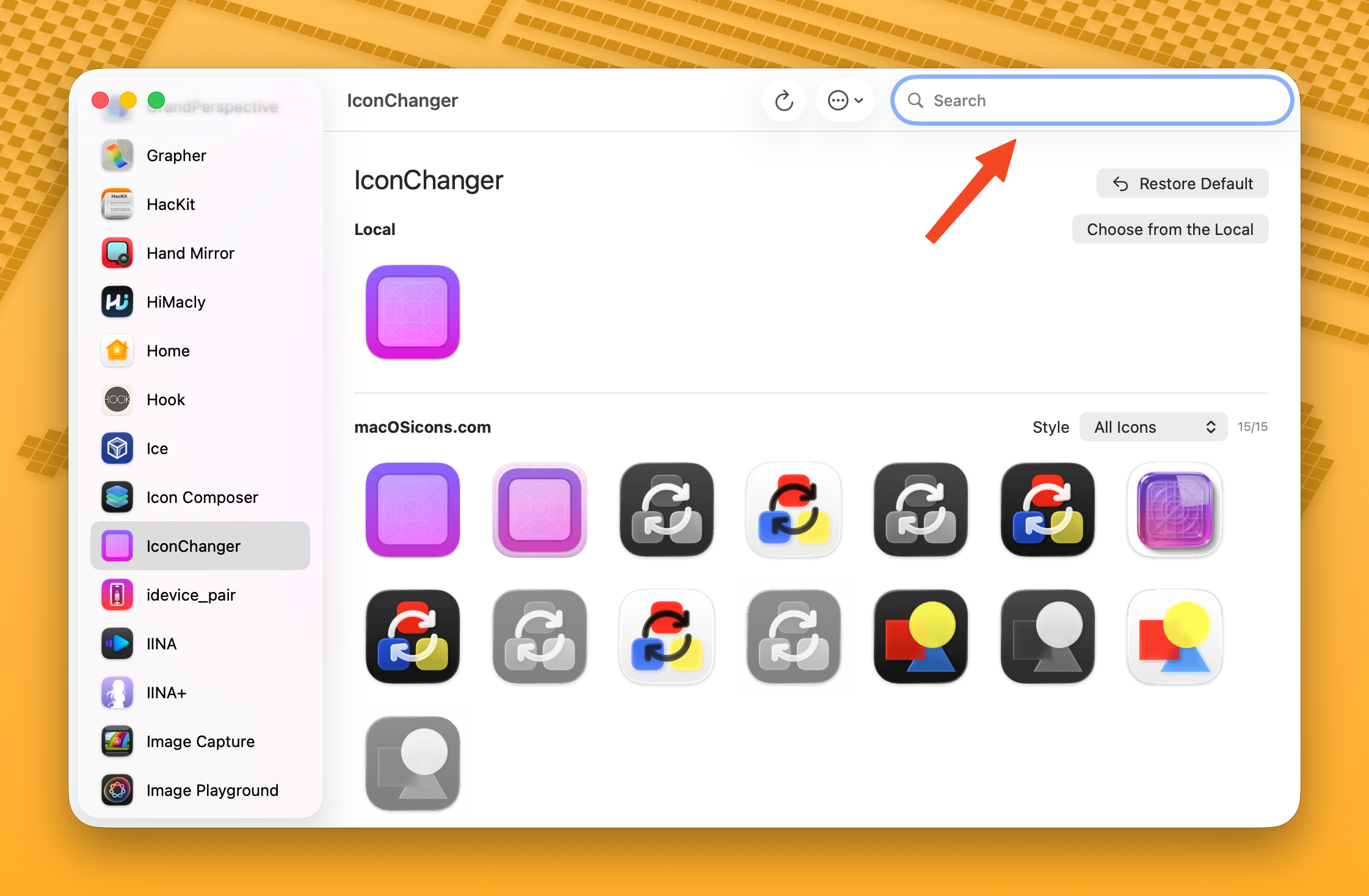
Search Online
- Select an app from the sidebar.
- Browse the icons from macOSicons.com in the main area.
- Use the Style dropdown to filter by style (e.g., Liquid Glass).
- Click an icon to apply it.
Choose a Local File
Click Choose from the Local (or press Cmd+O) to open a file picker. Supported formats: PNG, JPEG, ICNS, TIFF, HEIC, WebP, BMP, GIF, SVG.
Drag & Drop
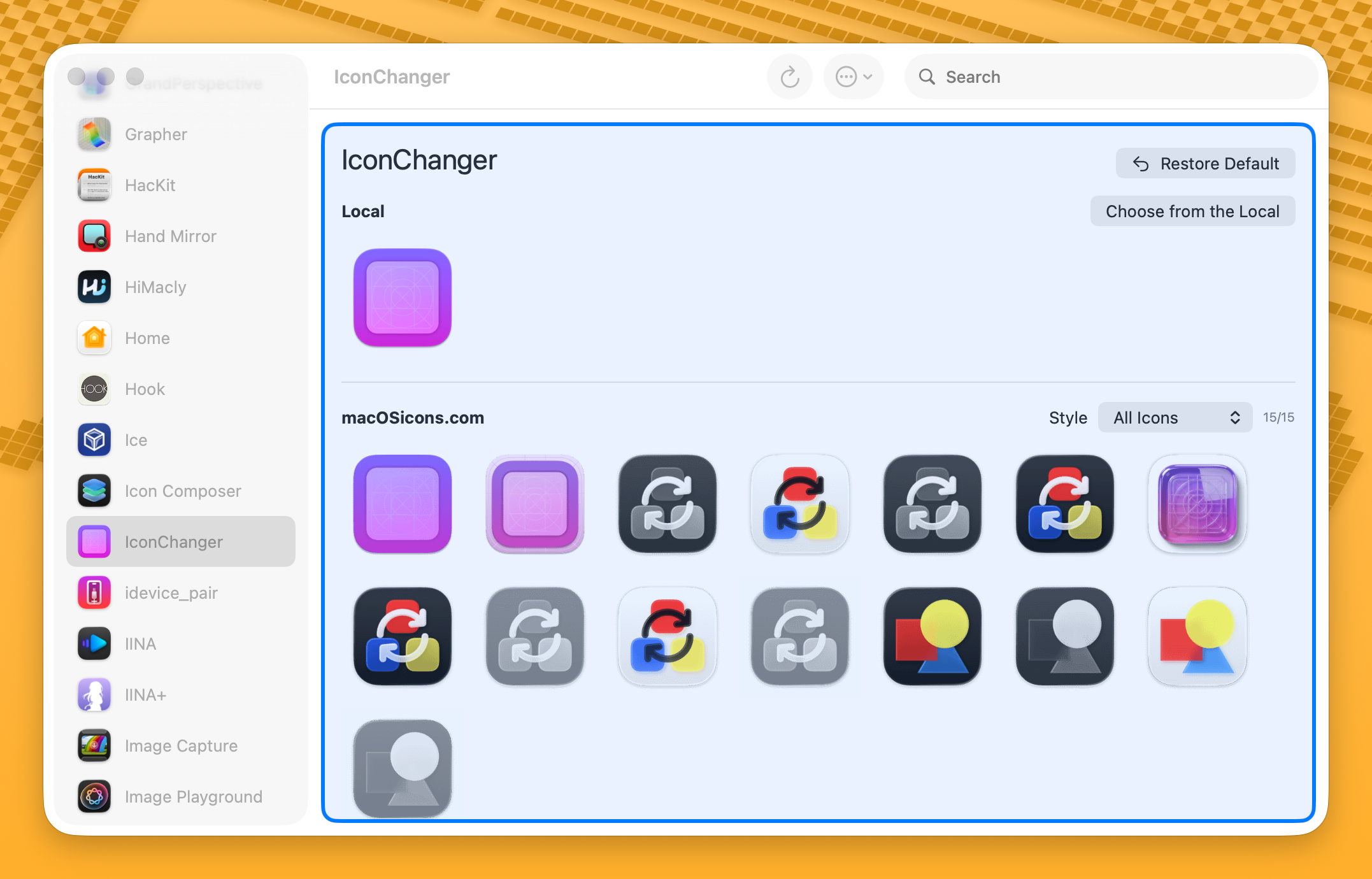
Drag an image file from Finder directly onto the app's icon area. A blue highlight will appear to confirm the drop zone.
Restore Default Icon
To restore an app's original icon:
- Click the Restore Default button (or press Cmd+Delete)
- Or right-click the app in the sidebar and select Restore Default Icon
Escape Squircle Jail (macOS Tahoe)
macOS 26 Tahoe forces all app icons into a squircle (rounded square) shape. Apps with non-conforming icons get shrunk and placed on a gray squircle background.
IconChanger can fix this by re-applying an app's own bundled icon as a custom icon, which bypasses macOS's squircle enforcement.
Per App
Right-click an app in the sidebar and select Escape Squircle Jail.
All Apps at Once
Click the ⋯ menu in the toolbar and select Escape Squircle Jail (All Apps). This processes all apps that don't already have custom icons.
::: info Your background service will automatically re-apply icons after app updates, keeping them out of squircle jail. :::
Folder Icons
You can also customize folder icons. Add folders via Settings > Application > Application Folders, or click the + button in the sidebar's folder section.
Once a folder is added, it appears in the sidebar just like apps. You can search for icons, drag & drop images, or choose local files — the same workflow as changing app icons.
Icon Caching
When you apply a custom icon, it is automatically cached. This means:
- Your custom icons can be restored after app updates
- The background service can reapply them on a schedule
- You can export and import your icon configurations
Manage cached icons in Settings > Icon Cache.
Keyboard Shortcuts
| Shortcut | Action |
|---|---|
| Cmd+O | Choose a local icon file |
| Cmd+Delete | Restore default icon |
| Cmd+R | Refresh icon display |
Tips
- If no icons are found for an app, try setting an alias with a simpler name.
- The counter (e.g., "12/15") shows how many icons loaded successfully out of the total found.
- Icons are sorted by popularity (download count) by default.