TUI Guide
Launch with pikpaktui (no arguments). On first run a login form appears. After login, you're in the responsive file browser. Press h for the built-in help sheet, ? for the discoverable Actions menu, or , for settings.
File Browser
Set columns = "auto" or a positive integer such as 4, 5, or 6 in
Settings or config.toml. Auto mode uses terminal width, minimum pane width,
and filename display width (including wide Chinese characters). Once established,
the auto count stays stable while navigating; resizing or changing layout settings
recalculates it. Fixed counts
show fewer readable panes when the window is too narrow; the active pane's
footer shows the visible/configured count.
The highlighted pane is the directory receiving keyboard commands. Entering
folders moves it to the right; deeper paths shift earlier ancestors off screen
while keeping a preview visible. Right-hand panes continue the selected directory
path: selected folder → its selected child → file preview. Remaining panes show
following siblings in the current sort order. Scrolling a folder preview changes
its selection and the previews to its right. Folder and media previews load
automatically; lazy_preview controls automatic text previews and file details.
Clicking an ancestor or descendant preview focuses its directory. Returning
restores its cursor and scroll position.
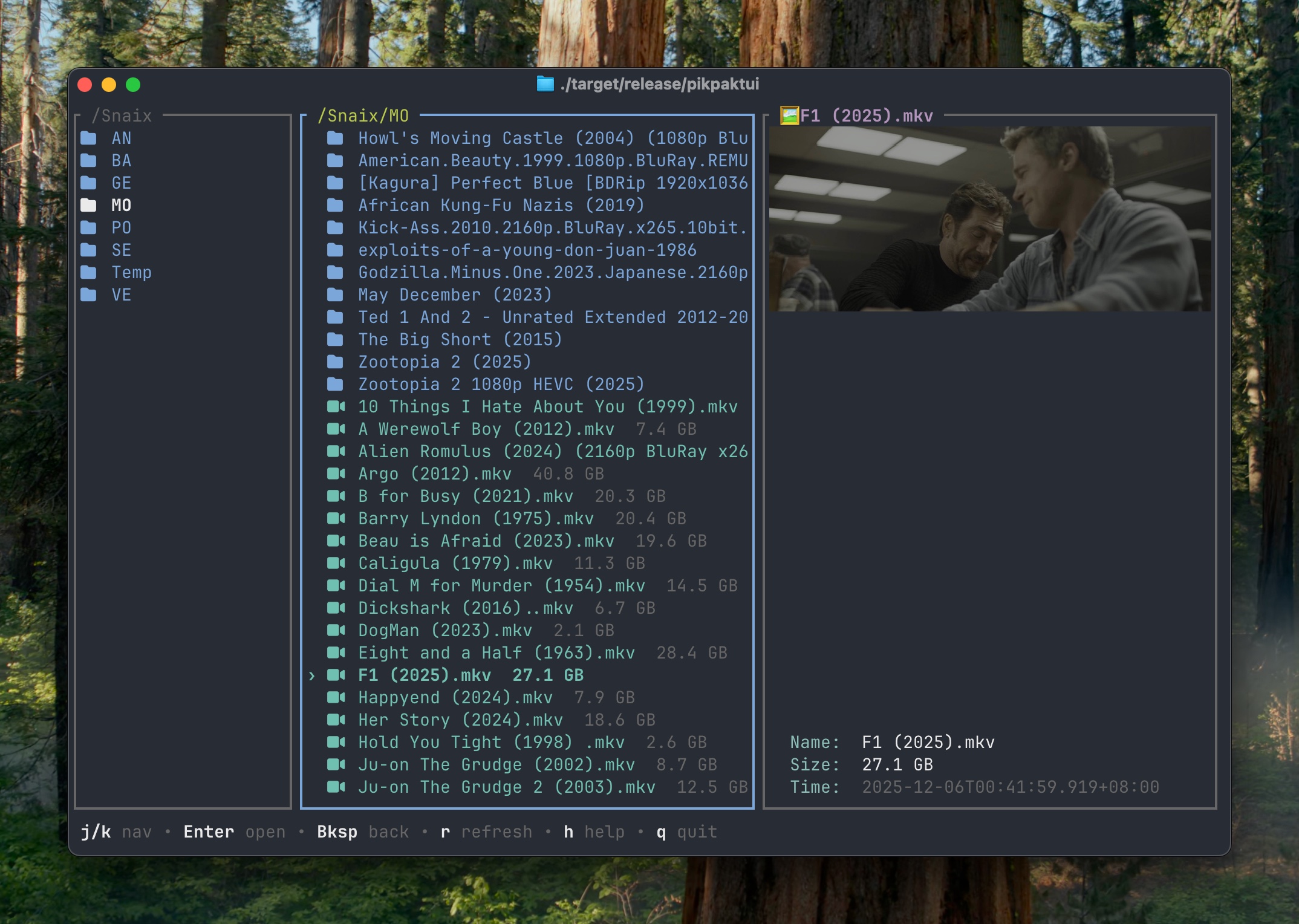
| Key | Action |
|---|---|
j / k / ↑ / ↓ | Navigate up/down |
g / Home | Jump to top |
G / End | Jump to bottom |
PageUp / PageDown | Page scroll |
Ctrl+U / Ctrl+D | Half-page scroll |
Enter / → | Open folder / play video (opens playback confirmation with quality dropdown) |
Backspace / ← | Go to parent directory |
w | Stream video — opens quality/resolution picker |
r | Refresh current directory |
m | Move (opens folder picker or text input, per move_mode setting) |
c | Copy |
n | Rename (opens inline text input) |
d | Delete — prompts for confirmation |
f | New folder (opens inline text input) |
s | Star / unstar current file |
y | Copy direct download URL to clipboard (files only) |
u | Upload a local file to the current folder |
a | Toggle current item in/out of cart |
S | Cycle sort field: name → size → created → type → extension → none |
R | Toggle reverse sort order |
A | Open cart view |
D | Open downloads view |
M | Open my shares view |
o | Offline download — enter URL or magnet link |
O | Offline tasks view |
t | Trash view |
Space | File/folder info popup |
p | Preview file content (text preview / fetch listing) |
v | Toggle inline image thumbnails |
[ / ] | Shrink / enlarge inline thumbnails |
l | Toggle log overlay |
: | Go to path — type a cloud path and press Enter |
, | Settings panel |
h | Help sheet |
? | Actions menu |
q | Quit (confirms if downloads are active) |
Ctrl+C | Quit (confirms if downloads are active) |
Recent operation results appear as a short-lived status message without opening the log overlay. The same messages remain available in the log.
Inline thumbnails
Files with an available thumbnail link show a tiny thumbnail before the filename,
including images, videos, and document covers.
v toggles them; [ shrinks and ] enlarges them. These shortcuts save the setting.
The Settings panel also exposes Inline Thumbnails and Inline Thumbnail Size:
tiny (2×1), small (4×2), medium (6×3), large (8×4) terminal cells.
Larger thumbnails increase row height; the filename can wrap beside the image.
Page navigation and mouse clicks follow those rows. Pending, loading and failed images
keep a grey card of the same size, so row height and filename alignment stay stable.
Images and videos without a thumbnail URL also keep an unavailable card; other files
keep their normal icon. Thumbnail Placeholders can disable these cards. Only visible
rows and previews are loaded, and a single image request serves both views.
p retries the selected preview and r refreshes all previews. Errors remain in
the log. Kitty, iTerm2, and Sixel terminals use native image pixels; other
terminals use colored half blocks. Encodings are reused between frames.
Inline thumbnails have a separate toggle from the large preview pane.
Actions Menu
Press ? to browse the available actions with their shortcuts. Use j / k
or the arrow keys to select an action, Enter to run it, and Esc or ? to
close. The menu also supports the mouse wheel, single-click selection, and
double-click activation.
Delete confirmation
Pressing d opens a confirmation prompt:
y— move to trash (recoverable)p— opens a second prompt asking you to typeyesand press Enter for permanent deletionn/Esc— cancel
Folder Picker (Move / Copy)
Appears when move_mode = "picker" (default). A two-pane folder navigator.
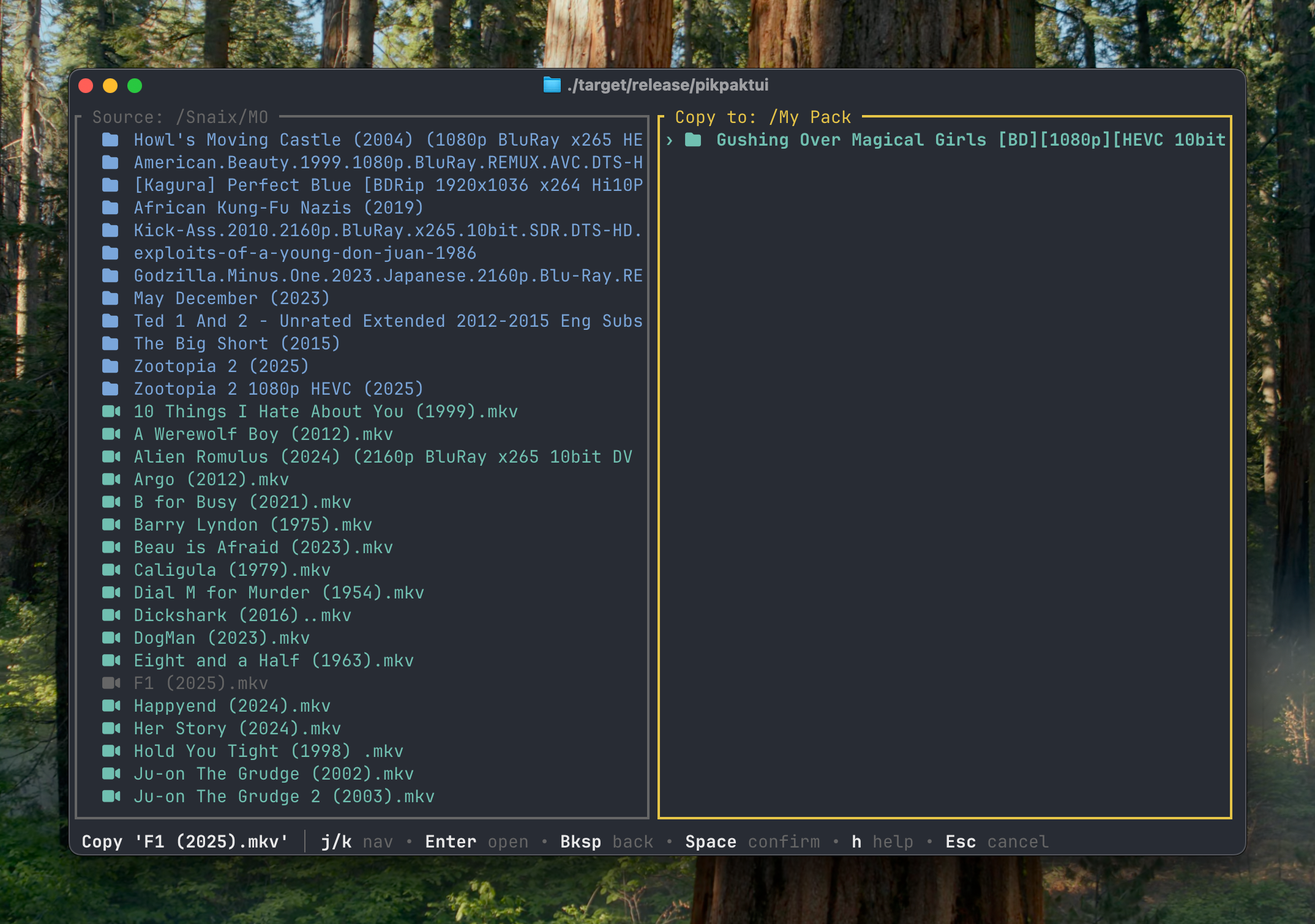
| Key | Action |
|---|---|
j / k | Navigate folders |
Enter | Open folder |
Backspace | Go to parent |
Space | Confirm destination |
/ | Switch to text input mode |
Esc | Cancel |
Text Input
All text fields — login, rename, new folder, paths, URLs, player command, and local transfer destinations — support cursor-aware editing.
| Key | Action |
|---|---|
← / → | Move by one Unicode character |
Home / End | Move to the start / end |
Backspace / Delete | Delete before / at the cursor |
Ctrl+A / Ctrl+E | Move to the start / end |
Ctrl+W | Delete the previous word |
| Type | Insert at the cursor |
Esc | Cancel |
Long values scroll horizontally to keep the cursor visible. Cloud path fields used for move/copy add these controls:
| Key | Action |
|---|---|
Tab | Autocomplete cloud path |
Enter | Select completion / confirm destination |
Ctrl+B | Switch back to folder picker |
Esc | Close completions first, then cancel |
Cart View
Add multiple files with a, then batch-download, move, copy, or share them all at once.
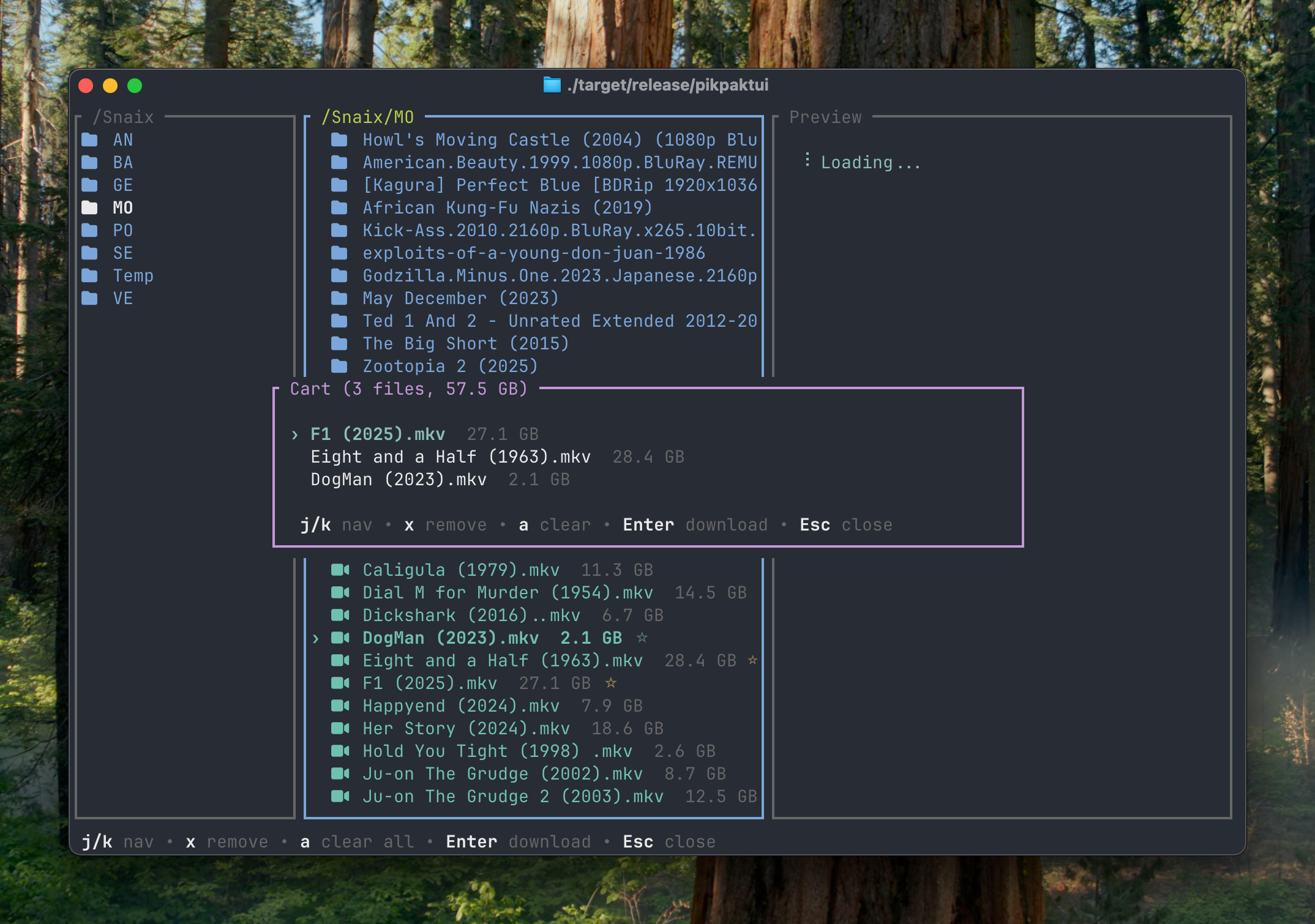
| Key | Action |
|---|---|
j / k | Navigate |
x / d | Remove selected item from cart |
a | Clear all items |
Enter | Download all — prompts for local destination |
m | Move all items (folder picker) |
c | Copy all items (folder picker) |
t | Trash all items |
s | Share all items (prompts: p = plain link, P = password-protected) |
S | Share all (plain link, no prompt) |
Esc | Close cart view |
Download View
Press D to open the download manager. Active downloads show progress in real time.
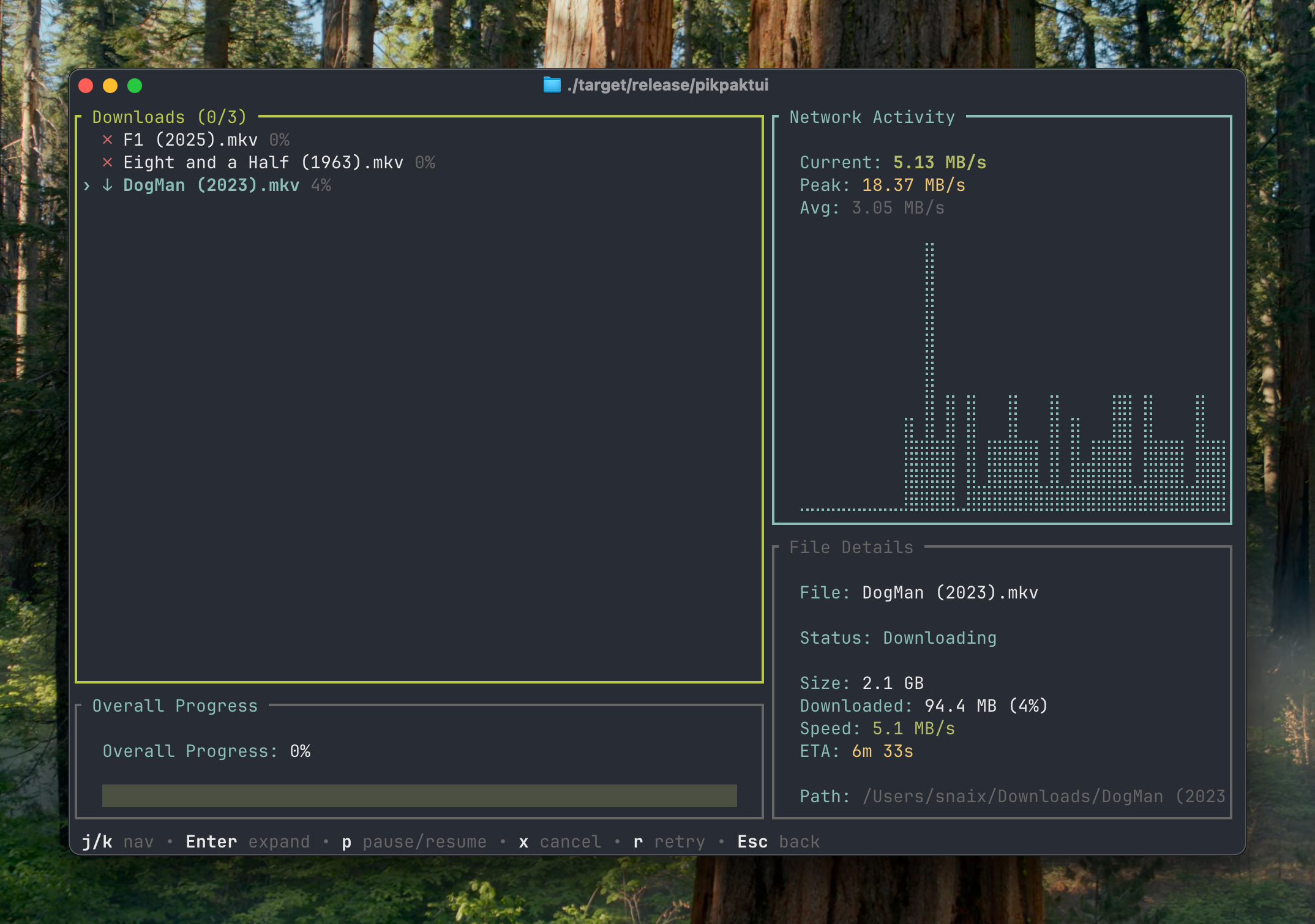
| Key | Action |
|---|---|
j / k | Navigate tasks |
Enter | Toggle collapsed / expanded view |
p | Pause / resume selected task |
x | Cancel and remove selected task |
r | Retry a failed task |
Esc | Close (downloads continue in background) |
Trash View
Press t to open the trash. Files deleted with d → y land here.
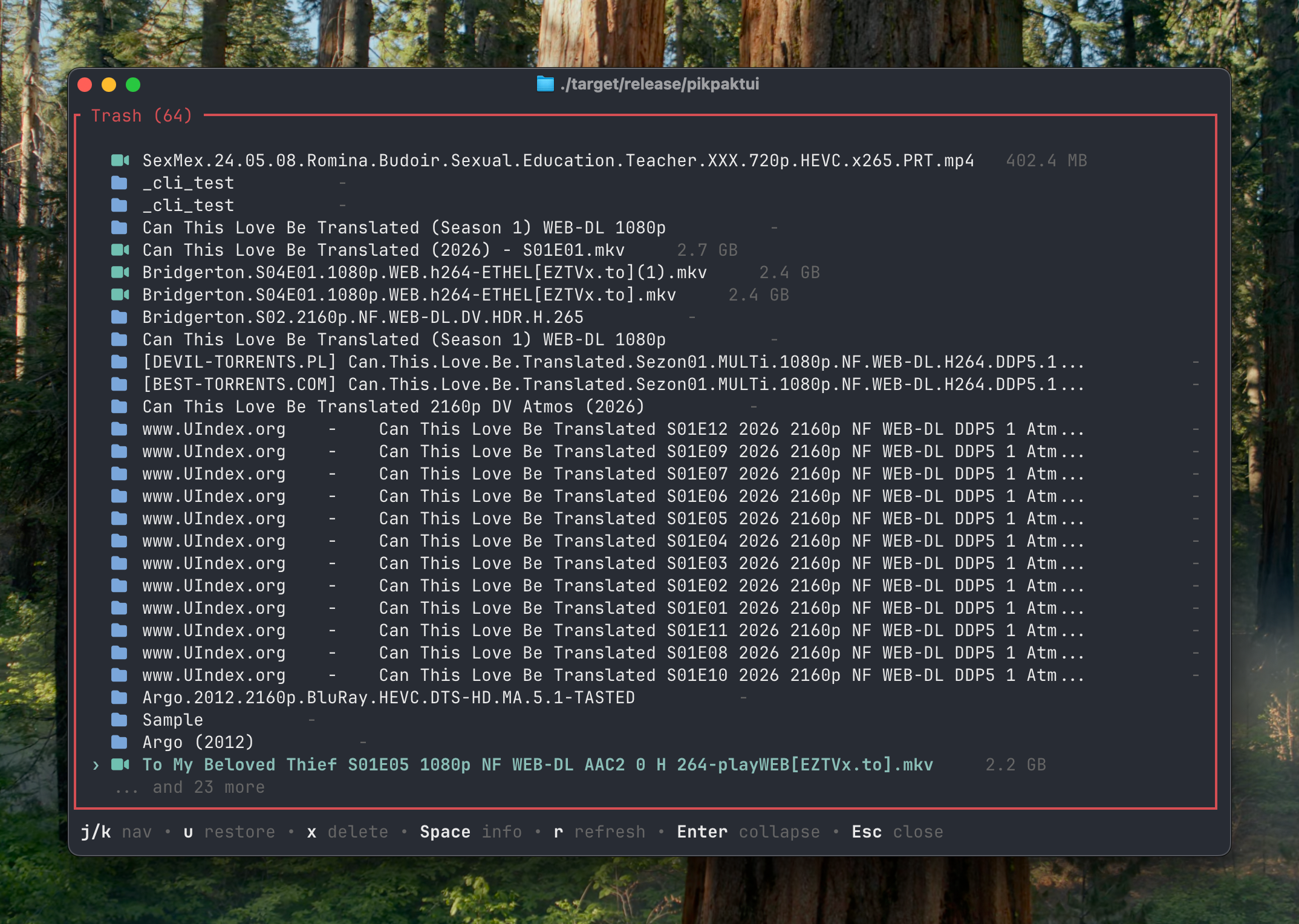
| Key | Action |
|---|---|
j / k | Navigate |
Enter | Toggle collapsed / expanded |
u | Restore (untrash) selected item |
x | Permanently delete selected item |
Space | Show file info popup |
r | Refresh trash listing |
Esc | Close (or collapse expanded view) |
Offline Tasks View
Press O to view server-side download tasks.
| Key | Action |
|---|---|
j / k | Navigate |
r | Refresh task list |
R | Retry selected failed task |
x | Delete selected task |
Esc | Close |
Video Quality Picker
Press Enter on a video to open Play Video, including its quality dropdown. w opens the direct stream picker. Only versions returned for the file are listed; hidden versions are excluded, while links not ready or requiring extra quota are disabled.
| Context | Key | Action |
|---|---|---|
| Play Video | q / Space / Tab, or click Quality | Open quality dropdown |
| Dropdown | j / k, arrows, or wheel | Navigate permitted versions |
| Dropdown | Enter or click an available row | Select quality and return to confirmation |
| Dropdown | Esc | Cancel selection and return |
| Play Video | y / Enter | Play the selected quality |
| Play Video | n / Esc | Close |
Direct picker (w) | j / k, Enter, Esc | Navigate, play, cancel |
Selecting from the dropdown does not start playback; confirm afterward. Original is the default and means source quality. Change the saved preference in Settings → Playback Settings → Default Playback Quality, or set playback_quality in config.toml. A per-file choice does not change the default. The actual selection and any fallback are shown before playback. Long quality lists scroll to keep the selection visible.
Settings
Press , to open settings. Changes stay in a draft until you press s, which
applies them and persists them to config.toml.
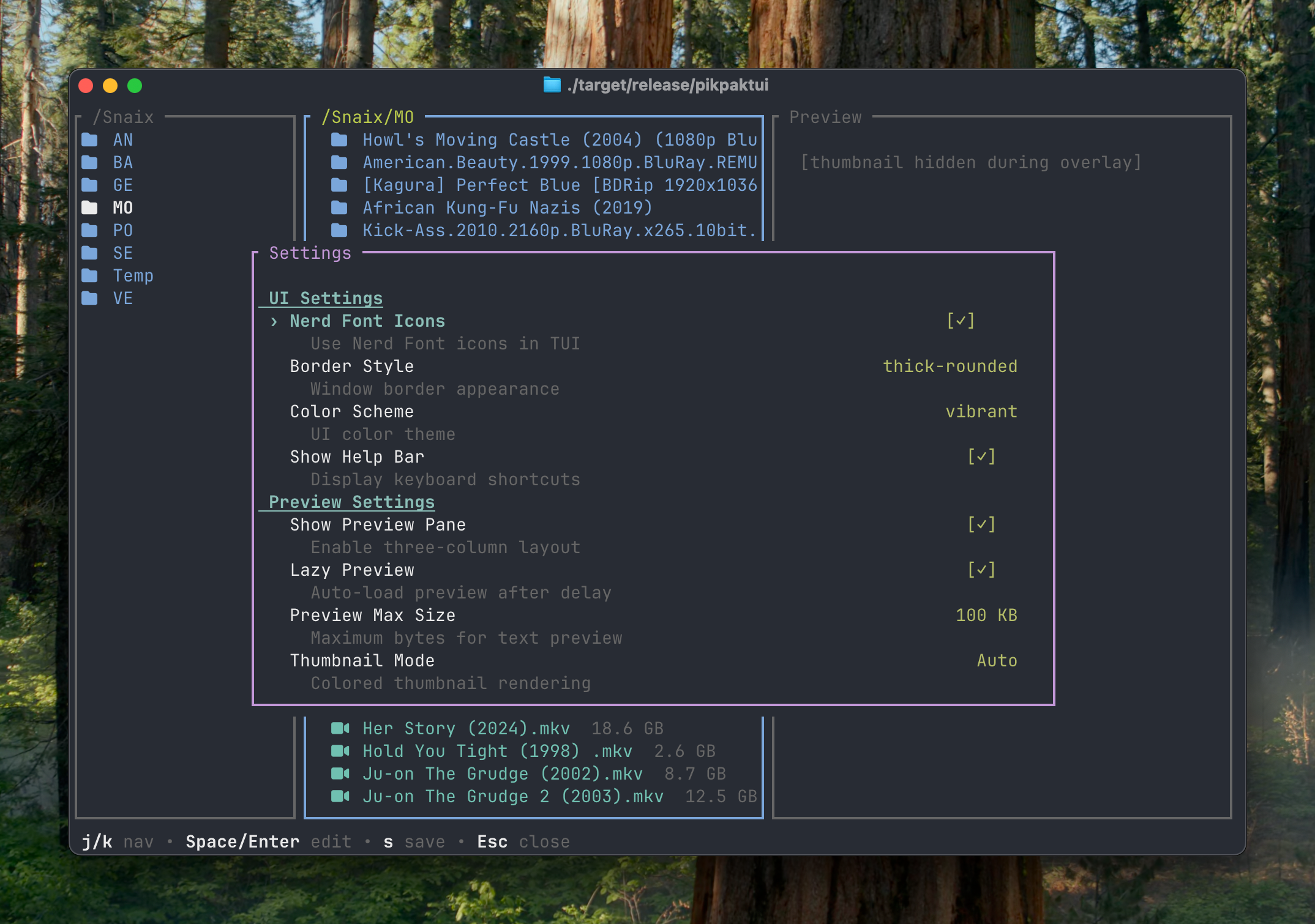
| Key | Action |
|---|---|
j / k | Navigate items |
Space / Enter | Edit / toggle selected item |
← / → | Cycle through options for multi-value settings |
s | Save changes to config.toml |
Esc | Close, or ask before discarding unsaved changes |
At the unsaved-changes prompt, press y / Enter to discard or n / Esc
to return to editing.
Settings include: Nerd Font, border style, color scheme (with custom RGB editor), help bar, quota bar style, show preview, lazy preview, preview max size, thumbnail mode, image protocols, sort field, reverse order, move mode, CLI Nerd Font, player command, default playback quality, concurrent download jobs. Also available: column count, minimum column width, inline thumbnails, inline thumbnail size, thumbnail placeholders, and server thumbnail source size (applied after saving).
My Shares View
Press M to open your share history.
| Key | Action |
|---|---|
j / k | Navigate |
y | Copy share URL to clipboard |
d / x | Delete share (prompts confirmation) |
r | Refresh shares list |
l | Toggle log overlay |
Esc | Close |
Help Sheet
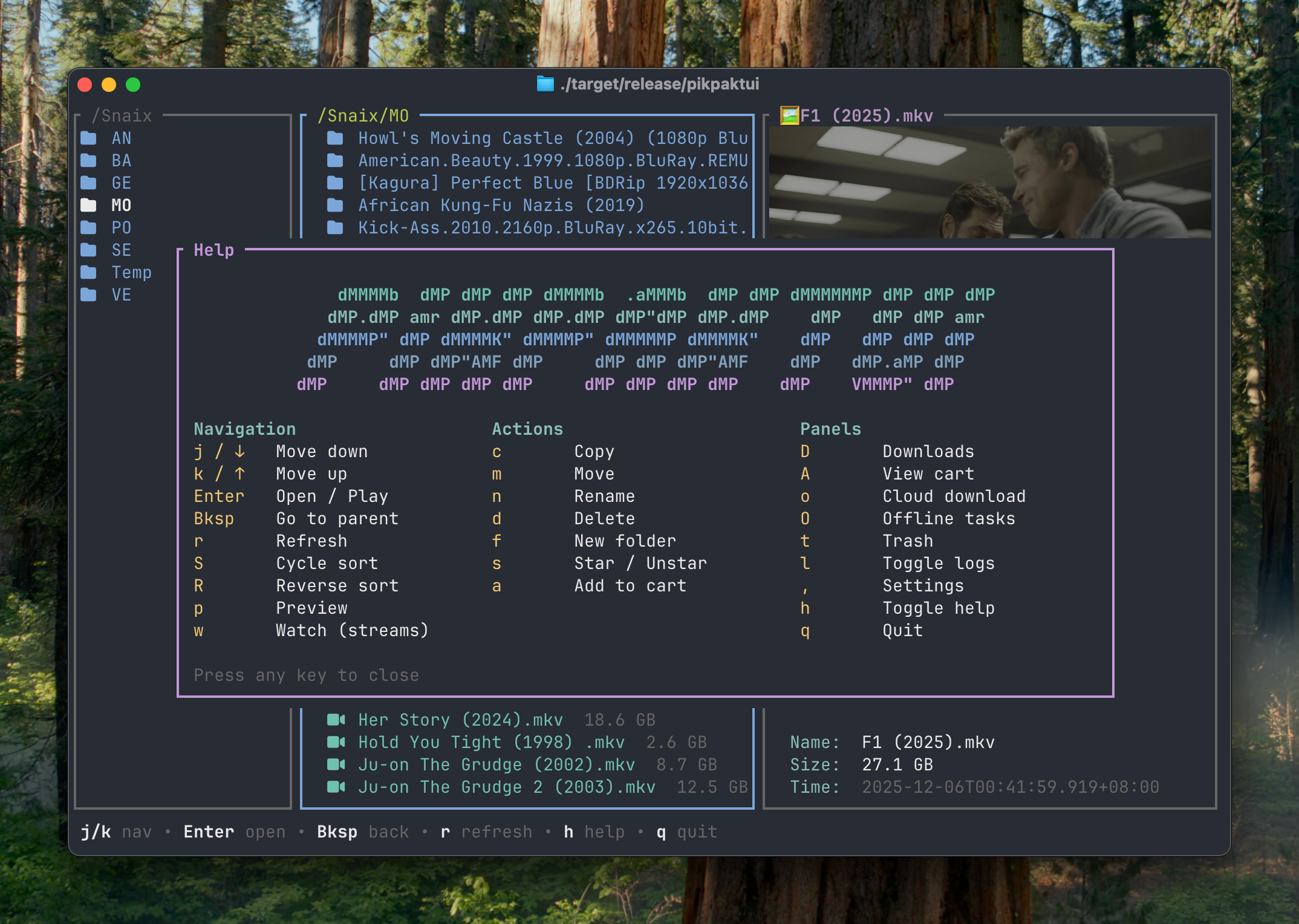
Press h in the file browser to open the built-in help sheet. On short
terminals, use j / k, arrows, page keys, Home, or End to scroll; press
Esc (or another non-scroll key) to close it.
Mouse Support
- Click — Select entries in file panes and modal lists
- Double-click — Run safe primary actions in file panes, cart, trash, and the player picker; destructive actions still require confirmation
- Scroll wheel — Navigate file panes, help, Actions, cart, downloads, offline tasks, trash, shares, player choices, color/protocol settings, preview, and logs